The Full Slate Blog

February 8, 2012

Unlock Your Data for Reporting and Analysis

Filed under: New & Improved — Patrick @ 3:37 pm

You now have greater access to your operating data so you can track how your business is performing and make key business decisions. Interested in learning who your most active clients are, what services are your most popular or which employees are generating the most revenue? Need last week’s appointment information for billing, or last year’s activity for tax reporting? Now you can easily export your data into a CSV (“comma separated value”) file and open it in Excel to report, filter, sort and otherwise analyze the data any way you want.

Everything you need is there: date and time of the appointment, client, service, provider, price, no-show status, and more. Just go to the Schedule tab, click ‘More’ > ‘Sync, Import & Export’ > ‘Export appointments’ > ‘Download .csv file’. Choose the date range you want, including past and upcoming appointments. And then select which providers you want and whether or not to include canceled appointments. Click OK and in seconds you’ll have your data.

So go ahead…unlock your operating data to track performance and make informed business decisions!

January 31, 2012

Tracking Clients: Active and Opt-In

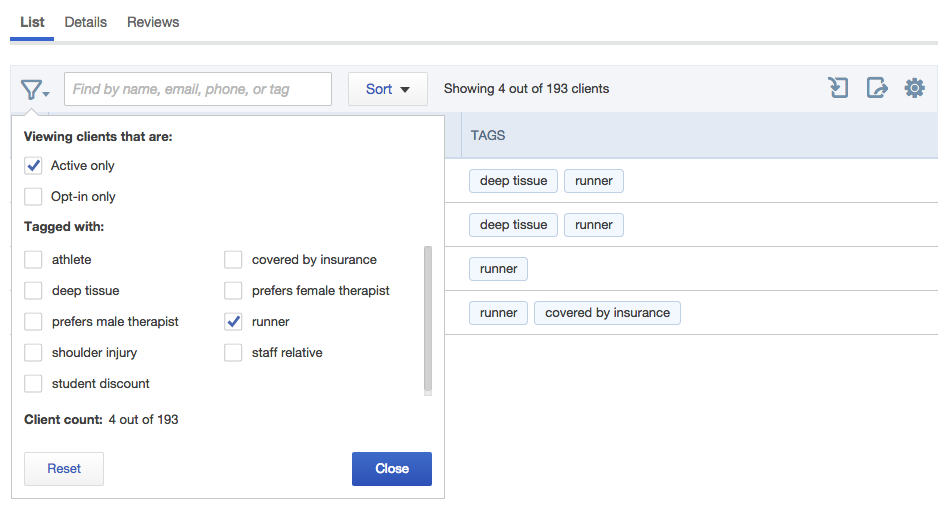
You can now track and filter clients based on their active/inactive and opt-in status. You may have noticed two new checkboxes on each of your client records: ‘Active’, and ‘Marketing email opt-in’.

By default, all of your clients are marked as Active. You can uncheck the box to mark inactive clients and hide them in your Clients > List without having to permanently delete their records. That way you can filter out your inactive clients when sending bulk emails.

‘Marketing email opt-in’ is a custom field you can add under Setup > Booking Details to the form your clients fill out when scheduling appointments. It lets your clients indicate whether they’d like to receive promotional messages from you. Then when you send a mass message from Clients > List, you can filter to only those clients who have explicitly opted-in.

In general, it’s a good practice to ask permission before sending someone bulk email. But if you haven’t added the opt-in field to your booking form or a client hasn’t made an appointment with it in place, they wouldn’t have had a chance to opt-in and the box will be unchecked. Note that you can also ask clients in person and then check the opt-in box yourself.

January 12, 2012

Let Clients Choose ‘No Preference’ on Provider

Filed under: New & Improved — Patrick @ 10:46 am

Now you can let clients specify ‘no preference’ on the provider when they schedule appointments with you, even under the ‘provider before service’ scheduling workflow. Previously, when you chose to have clients select the provider and then the service, clients had to choose a provider in order to schedule an appointment. Now, you can let them select ‘no preference’, which works great for new clients or those who simply want the time that works best in their schedule.

You can establish this setting under Setup > Booking Details. If a client chooses ‘no preference’, they will be presented with a list of all services and available time slots across all staff members. And if more than one staff member has availability during a selected time slot, a provider will be selected randomly or selected in the order in which they’re listed, as defined under the last setting under Setup > Booking Rules.

This is another customer-requested feature, so thanks as always for the feedback!

January 11, 2012

Online Scheduling in a Therapy & Marriage Counseling Practice

Filed under: Case Studies — Tags: , , , — Chris @ 2:01 pm

Colleen Crafton of Murfreesboro Counseling Services

Colleen Crafton, a licensed therapist, has embraced technology to keep her counseling practice growing and running smoothly.  She predicts that more and more mental health professionals will overcome their fears this year and start using online tools.

More Convenient & Discrete

Colleen started using Full Slate’s appointment scheduling software when she opened her private practice almost two years ago.  She put a button to schedule an appointment at the top of her website.  Many of her clients work during the day and appreciate this discrete alternative to calling for an appointment.

According to Colleen, the response from clients has been very positive.  “About 80 percent make appointments online on their own,” she says. “A good many find my website and use the online scheduler without me even telling them.”

Booked Solid

Her schedule fills up fast, so Colleen blocks out some time to ensure there is room for people who call in need of an urgent appointment. That way she can still fit in clients having a crisis and last-minute referrals from insurance companies.

She encourages current clients to setup a treatment schedule in advance. “At the end of a session, I whip out my iPad, bring up Full Slate, and say, ‘Let’s schedule your next session right now.’ I’ve got clients who are already booked three months out,” Colleen says.  “They think, ‘Good heavens, I need to plan ahead or there won’t be any slots left.’”

And she doesn’t have many missed appointments anymore.  Colleen added a paragraph at the bottom of the email reminder that’s sent automatically before each appointment.  It reinforces her cancellation policy and puts the client on notice that there is a $60 fee for failing to appear. As a result, she’s “decreased no-shows to almost nothing.”  On the rare occasion when someone doesn’t show, a flag in the client’s appointment history gives her a heads-ups.

Color-Coded Calendar

Full Slate’s appointment scheduling software has helped Colleen streamline billing, too.  She color-codes appointments based on intake and billing status.  “My favorite color is purple – then I know everything is done; the paperwork’s complete, I’ve been paid.”

Just by glancing at her calendar, Colleen can tell if it’s a patient’s first visit and the necessary forms are complete.  She can see right on her schedule when a client has made a co-pay through PayPal, and uses the notes field on appointments to keep track of insurance claims and payments.  When she emails a client about a co-pay or the balance due, it’s logged in Full Slate’s message history.

Safe & Sound

Although the software has become integral to her practice management, Colleen acknowledges “it’s a new thing for people to see therapists using technology.  We have not, as a group, used any kind of online tools.”  She thinks fears about hacking and concerns over confidentiality are to blame.

Despite widespread misconceptions, the reality is mental health professionals can use online tools to facilitate health care operations and be HIPAA compliant.  There are helpful FAQs posted on the U.S. Department of Health & Human Service’s website clarifying the patient Privacy Rule as it relates to appointment scheduling and reminders.  Full Slate has also published a statement to allay concerns about online HIPAA compliance and online scheduling.

Perhaps 2012 will be the year therapists reconcile with technology. Colleen thinks so: “Having online tools like Full Slate easily accessible, more of us will grab hold.”

January 9, 2012

View All Upcoming and Past Appointments

Filed under: New & Improved — Patrick @ 3:12 pm

Now you can view all upcoming and past appointments for each of your clients. Full Slate has always shown the next five and last five appointments for each client on the Clients > Details tab, but now you can extend the listing to include the next year’s upcoming appointments and all past appointments. It’s much easier to get a complete picture of each client’s appointment record, including individual appointments within recurrences.

Have a client that needs to change an appointment that’s still several months away? No problem, you can pull up their client record, quickly find the appointment and make the change on the spot.

Just go to the Clients > Details tab, pull up a client and look for the expansion links under Upcoming Appointments and Past Appointments on the left side of the page.

Note also that clients who’ve registered for an account can log in to view their full list of appointments and make changes as necessary.

This useful functionality is the result of user requests, so please keep those requests coming!

December 14, 2011

Enhance Social Media with Online Scheduling

Filed under: Build Your Business — Patrick @ 2:09 pm

Social media, like Facebook and Twitter, can be an effective way for service professionals to stay in touch with clients and find new ones. But to get the most out of your posting and tweeting, be sure to combine it with online scheduling! Here are a few ideas to optimize your socializing:

Add an Appointment App to Your Facebook Page

Facebook can be a fantastic way to stay top-of-mind with your clients and encourage them to recommend your services to their friends. The trick is posting something on your wall that they’ll want to share – like an offer to buy one/get one free or a reward for referrals. Then make it super easy for friends on Facebook to make appointments by adding a ‘Schedule Now’ tab to your business page using Full Slate’s Facebook app.

Fill Openings in Your Schedule with Twitter

Last-minute cancellations and slow days are an inevitable facet of the service industry, but with an active Twitter following and online scheduling, you can fill the gaps. Just fire off a tweet about those openings with a tiny URL linking to your online scheduler. Time-sensitive deals are one of Twitter’s Best Practices for Businesses. Tweeting discounts on same-day and next-day appointments gives people a reason to follow you and can turn idle time into billable hours.

Link to Your Online Scheduler in Blog Posts

A blog is a great way to announce new services and special offers. Be sure to include a link to your appointment scheduler in these posts. You can make a schedule appointment button that links to openings for a specific provider or service under Web > Buttons in Full Slate.

Send an Automatic Follow-up Email to Generate Reviews

Online review sites like Yelp and Google Places are a great source of new clients. People go there to find popular businesses and the more reviews you have, the better.

How can you get more reviews? Easy. Set up an automatic follow-up email in Full Slate to go out after every appointment.  Thank your client for coming in, link them to your Yelp and Google Places profiles, and ask for feedback. Don’t be afraid of a few negative reviews – they actually enhance credibility.

You might consider adding a Yelp Deal or Google Offer for new clients too… and don’t forget to link right to your appointment scheduler!

November 22, 2011

Resize Your Logo with Ease

Filed under: New & Improved — Patrick @ 2:25 pm

You don’t have to be a graphic designer to resize your logo to the perfect size on your landing page. Now you can change the size of your logo with just the slide of a button. Simply upload your logo under Setup > Company, and if it’s too large on your landing page, quickly resize it to the perfect fit. What more can we say about this handy new feature?

November 7, 2011

More Client Booking Customization

Filed under: New & Improved — Patrick @ 1:04 pm

You can now further customize the pages your clients see when they schedule appointments with you.

The last button clients click when they book an appointment says, by default, “Schedule Appointment”. Wish it said “Schedule Session”, “Book Appointment” or “Book Now!”? Now you can make it say anything you want. Mobile businesses might use “Schedule Visit”. Room reservation businesses might use “Reserve Room”. Get creative and use what works best for your business.

You can also change the “staff” label to anything you like. Maybe you want it to be more specific to your business:  “Therapist”, “Stylist”, “Counselor”. Or maybe you’re using staff to schedule resources:  “Room”, “Booth”, “Vehicle”.

Just go to Setup > Booking Details to change either of these fields. Your changes will automatically show up on your landing page, website widget, and Facebook page.

We’ve seen you use Full Slate in so many ways! Now, combined with ‘look and feel’ stylization, month/week view, custom fields, and other customization options, you have more ways to personalize your scheduling pages to really meet the needs of YOUR business.

October 26, 2011

Adding an Appointment Scheduler to Your Massage Website

Filed under: Build Your Business, Tips & Tricks — Chris @ 12:52 pm

With online scheduling, your website can become more than a brochure – it can actually turn clicks into confirmed appointments.  In marketing lingo, that’s called “conversion,” and it’s key to growing your business online.

Massage Appointment SchedulerWhen someone visits your site, you want them to take action right away before they click off or get distracted by something else.  To that end, consider adding a call-to-action like “Make an Appointment Now” to every page on your site.  The Specials/Call-out Box under Set Profile in ABMPs website builder is a great place to highlight that clients can make appointments online.

You may also want to name the page with your appointment scheduling widget something like “Online Scheduler” or “Appointments” and include that link in your navigation bar so it’s easy to find.  You want to be sure clients know they can book on your website instead of having to pick up the phone and call.

ABMP’s website builder provides a special place to put an appointment scheduler on the Hours & Scheduling Page.  Simply copy the code from Full Slate under Web > Widgets into the box labeled “Online Scheduling Module” on the Hours & Scheduling page.

Full Slate has two types of widgets to choose from.  Both work the same from the clients’ perspective but look a little different code-wise.  The javascript widget uses the styles defined in whatever template you choose for your website, so the fonts and colors should automatically match.   However, if you don’t like the way the widget looks, you can’t change it without changing the entire template.

The iframe widget, on the other hand, uses the styling you pick on the Web > Look & Feel tab inside Full Slate.   You can change the basic style, color, font and size in Full Slate, and they’ll automatically update on your website after you save your changes and refresh the page.

No matter which widget you use, clients will be able to make appointments right on your website.  They’ll stay on your page the whole time and never link off to another site (unless you use PayPal), which makes for a seamless experience.

The first screen of Full Slate’s online scheduler lists your services and rates, so it’s not necessary to have a separate page with this info.  You can remove the standard Services & Rates page in ABMP’s website builder by going to Manage Pages and either unchecking the Visible box to hide it or clicking the X to delete it.  If you choose to keep the Services & Rates page, you may wish to describe each service in detail using the Page Text box rather than simply listing them in a table.

To see an example of a site on Massagetherapy.com created using ABMP’s website builder that includes Full Slate’s appointment scheduler, go to http://fullslate.massagetherapy.com.

Did you know you can also add online scheduling to your result page in the “Find a Massage Therapist” search engine on Massagetherapy.com? Here’s how:

  1. Log in to Your ABMP Account and go to Update Massagetherapy.com’s referral listing.
  2. Click on the Listing Detail Link.
  3. Scroll down and paste your Full Slate widget code into the box labeled “Online Scheduling Code.”
  4. Save Updates.

Voila!  Before you know it, you’ll be getting new clients and more appointments through your website.

October 17, 2011

Mobile Scheduling by Clients

Filed under: New & Improved — Patrick @ 11:50 am

It’s now easier than ever for clients to schedule appointments from their mobile phones. Your Full Slate landing page now recognizes when a mobile phone is used and renders your client scheduling pages in a mobile-friendly format.

When a client accesses your landing page (which is your custom scheduling webpage at http://yourbusiness.fullslate.com) with an iPhone, Android or other smart phone, available times are formatted to fit the screen size of a mobile phone and organized by day, making it easy to browse for the time that works best. Once your client finds they time they want, it’s easy to select it using their phone’s touch screen. No resizing. No horizontal scrolling. Just some quick browsing and the appointment is booked.

If you’d prefer that clients schedule directly from your website, we recommend using the javascript widget for optimal scheduling on mobile phones. The iframe widget isn’t supported on some phones, so if you use it on your website, we suggest also including a link to your landing page for mobile scheduling.

And don’t forget, if your clients are always on the go, you can send them text message (SMS) reminders too.

Easy scheduling on the go makes for happy clients and more appointments!

Older Posts »

Theme: Shocking Blue Green. Blog at WordPress.com.

Follow

Get every new post delivered to your Inbox.